


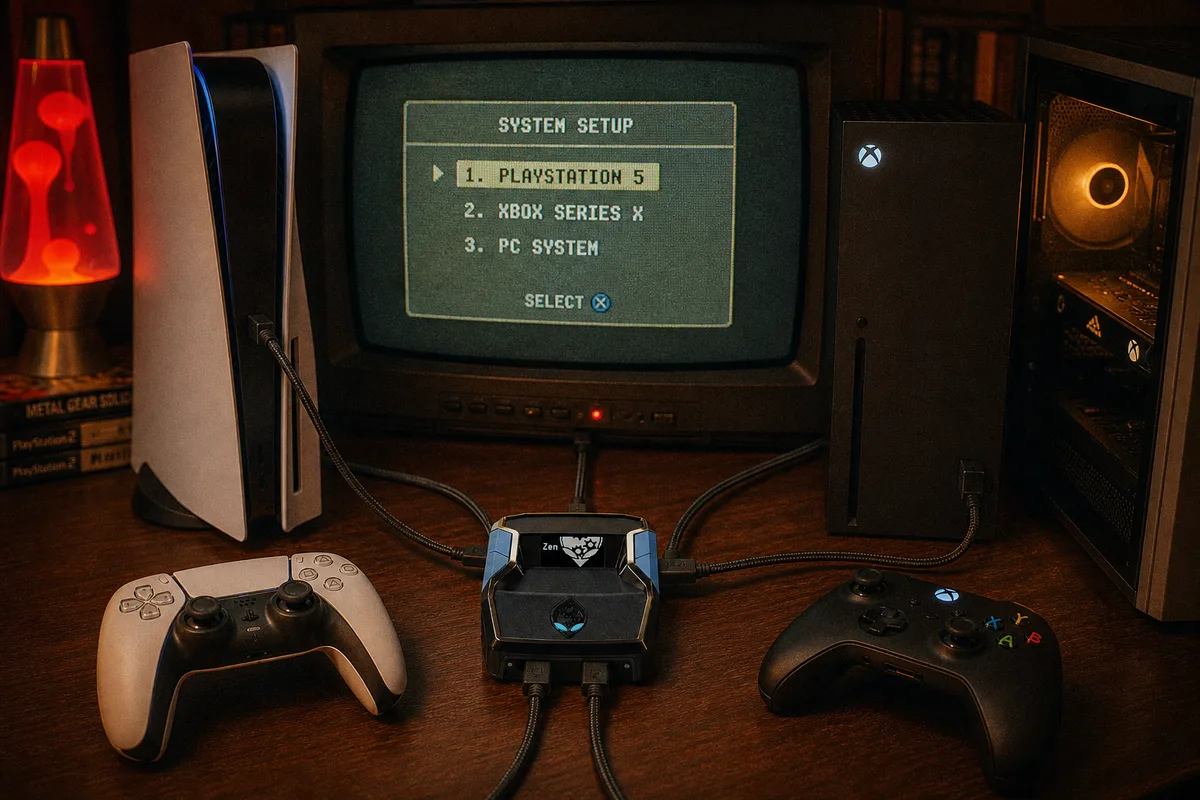
If you just unboxed a Cronus Zen and you're staring at three USB ports wondering where everything goes, you're in the right place. This guide walks through the full setup from zero to playing with a script loaded — PS5, Xbox Series X|S, Xbox One, and PC. I'll cover the steps in order so you don't have to jump back and forth between tabs.
What You Need Before You Start
Before we connect anything to your console, make sure you have these ready on a desk or table where you can see the Cronus Zen's small OLED screen:
- A Cronus Zen device
- A Windows PC or Mac for the one-time Zen Studio setup (you won't need the computer every time you play — only for loading scripts and firmware updates)
- Two high-quality micro-USB or USB-C data cables — not charge-only cables. If a cable only charges your phone and never shows up as a device on your PC, it will fail here too.
- Your controller (DualSense, Xbox controller, etc.)
- A .gpc script file — if you purchased from yew.gg, you'll download this from Whop after checkout

Step 1: Download Zen Studio
Zen Studio is the desktop app used to load scripts, change settings, and update firmware. Download it from the official Cronus website and install it on your computer. When you first open Zen Studio, plug the Cronus Zen into your PC using the PROG port (the top port on the device). Zen Studio should detect the device automatically.
If Zen Studio doesn't see your Cronus Zen, try a different USB port on your PC and a different cable. Nine times out of ten, the issue is a charge-only cable or a loose connection — not the Zen itself.
 yew.gg Zen Studio guide
Step 2: Update Firmware
Your Cronus Zen should run the latest stable firmware before you connect to a console — especially PS5. In Zen Studio, open the Firmware Update tool and follow the on-screen steps. Do not unplug the device while the update is running.
If you're on Xbox and need headset passthrough, some users downgrade to firmware 2.0.9-beta.43 — that's a specific edge case. For most users on PS5, Xbox, and PC, the latest firmware is what you want.
How to update Cronus Zen firmware (2026)
Step 3: Load Your GPC Script
Once firmware is current, load your script:
- In Zen Studio, open the Programmer tab
- Drag your .gpc file into one of the eight memory slots (slot 1 is fine)
- Click Compile & Run to flash the script to the device
- On the Cronus Zen OLED, select that slot so the script name appears on screen
For yew.gg scripts, you'll also run our generator tool once (yew2K generator, yewFN Generator, etc.) so the script is tuned to your build and settings. That step is covered in the product-specific guides inside Whop after purchase.
Download & load your yew.gg script
Step 4: Connect to Your Console
The connection steps differ by platform. Pick your console below.
PlayStation 5 (PS5)
PS5 requires an authentication step because Sony blocks most third-party devices by default. You have two options: the PS5 Bypass (free, USB method) or the Zen Link Wi-Fi Module (recommended for daily use).
Before either method, change these PS5 settings first:
- Settings → Accessories → Controllers → Communication Method → set to Use USB Cable
- Make sure Bluetooth is enabled on the console
For the USB Bypass: plug a USB cable from the PS5 into the Cronus Zen's OUTPUT port, connect your controller to the A1 port, hold the right D-pad while plugging in the cable, and wait for authentication. No script should be running on the Zen when you connect.
PS5 Bypass vs Zen Link — detailed docs
Xbox (Series X, Series S, One)
Xbox is the easiest setup. No bypass required.
- Plug a USB cable from your Xbox into the Cronus Zen's CONSOLE port
- Plug your Xbox controller into the A1 port with a data cable
- In Zen Studio, set Emulator Output Protocol to Xbox One X/S or AUTO
- Select your script slot on the Zen and play
Cronus Zen Xbox setup guide
PC
On PC, the Cronus Zen registers as a standard Xbox controller. Plug the Zen into your PC via USB, connect your controller to A1, load your script, and launch your game. Most PC games with controller support will work immediately.
Cronus Zen PC setup guide
Official connection reference (all platforms)
Step 5: Verify Everything Works
Once connected, check these before jumping into a ranked game:
- The Cronus Zen OLED shows your script name (not "No Gamepack Selected")
- Your controller inputs register in-game normally
- For basketball scripts: test a shot in an offline mode first to confirm timing feels right
If something isn't working, the most common fixes are: swap your USB cable, re-do the PS5 bypass with no script running, or re-flash the script in Zen Studio. Our Discord support team can also walk you through it live if you're stuck.
What About Scripts?
Setup gets the hardware working. The script is what adds the mods — Auto-Green, anti-recoil, building macros, and everything else. If you're looking for which script to run for your game, browse the gameplay demos before you buy.
Watch gameplay demos for every yew.gg script
Recommended script