


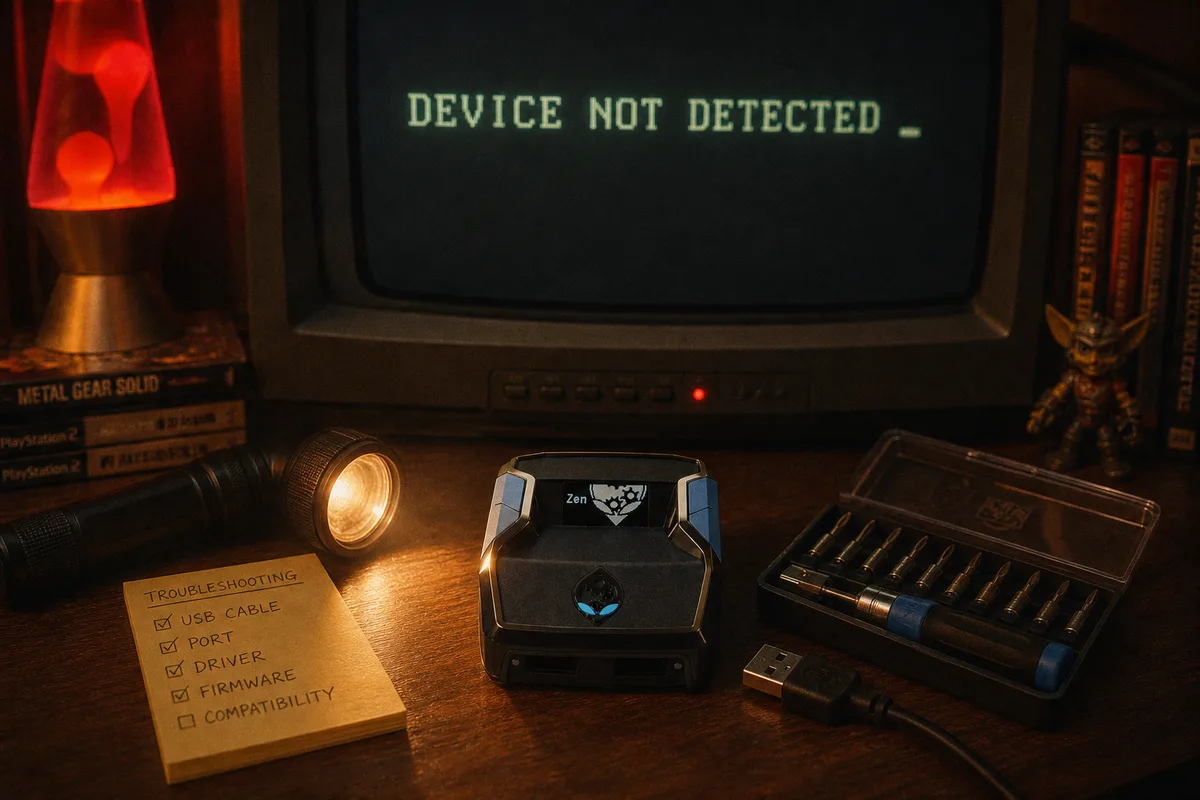
I handle setup tickets for yew.gg, and "my Cronus Zen isn't detected" is the single most common message we get. The good news: in almost every case the device is fine. The bad news: people usually try fixes in a random order and burn an hour on something a two-minute cable swap would have solved. This guide is the exact order I walk customers through, from most likely to least likely.
First, be clear about which kind of "not detected" you have, because the fixes are different:
- Zen Studio doesn't see the device — a PC-side problem (cable, port, driver).
- The console doesn't see the device — a connection or authentication problem (OUTPUT cable, PS5 bypass, controller on A1).
Fix 1: Swap the USB Cable (Seriously, Do This First)
Charge-only cables are the number one failure cause we see — by a huge margin. They look identical to data cables, they charge your phone perfectly, and they carry zero data. If your Zen powers on (OLED lights up) but never appears in Zen Studio, assume the cable until proven otherwise.
The quick test: plug the same cable into your phone and connect it to your PC. If the phone charges but never shows up as a device, the cable is charge-only. Throw it in a drawer you never open. I wrote a full breakdown of which cables actually work with the Zen if you want specifics.
 USB cables for Cronus Zen — why most cables fail

Fix 2: Check You're Using the Right Port
The Zen has multiple ports and they are not interchangeable:
- PROG (side) — this is the only port Zen Studio can talk to. PC setup, script loading, and firmware updates all go through PROG.
- OUTPUT (top) — this goes to your console or gaming PC. Zen Studio will never detect the device through OUTPUT.
- A1 — your controller. A2/A3 — extra peripherals.
If you plugged the Zen into your PC via OUTPUT and opened Zen Studio, you'll see nothing. Move the cable to PROG. And the reverse matters during play: the PROG cable must be unplugged when you're gaming — a connected PROG cable can stop the console from seeing the device properly.
Fix 3: Try a Different USB Port on Your PC
Front-panel ports and unpowered hubs are flaky. Plug directly into a rear motherboard port if you're on a desktop. On laptops, try every port — USB controllers can behave differently per port. Skip hubs, extenders, and monitor USB ports entirely while troubleshooting.
Fix 4: Restart Zen Studio and Reboot the PC
Unglamorous but real. Zen Studio occasionally fails to enumerate a device that Windows found after the app launched. Close Zen Studio fully, unplug the Zen, plug it back into PROG, then open Zen Studio. If that fails, reboot the PC with the Zen connected.
Fix 5: Console Not Detecting the Zen
If Zen Studio works but your console ignores the device, run this list:
- OUTPUT to console with a known data cable — same charge-only trap applies here.
- Controller on A1, wired, with a data cable. The console authenticates through the controller, so no controller means no detection.
- PROG unplugged. Repeat offender. Unplug it before you connect to the console.
- PS5 only: you must do the bypass — hold right D-pad while plugging the OUTPUT cable in, with no script running on the Zen. If a script is loaded on the active slot, the auth fails silently. Full steps in our PS5 guide.
PS5 Bypass & Zen Link — step-by-step docs
Connection reference for every platform
Fix 6: Update or Reflash Firmware
Outdated or corrupted firmware can make the Zen misbehave on both PC and console. If Zen Studio can see the device at all, run a firmware update from inside the app — it takes about 30 seconds. There's also a Chromium-based web update tool (WebUSB) that works from Chrome or Edge if Zen Studio itself is the problem. Steps for both are in our firmware guide.
Fix 7: Bootloader Mode — The "Dead Zen" Recovery
If the Zen shows nothing on the OLED, boot-loops, or refuses detection after everything above, use the bootloader. Flip the device over and find the small blue button on the bottom:
- Unplug everything from the Zen.
- Hold the blue button down.
- While holding it, plug the PROG port into your PC.
- Release once the OLED shows the bootloader screen, then reflash firmware.
This recovers almost every Zen that looks bricked, including ones interrupted mid-firmware-update. I covered the full procedure in the hard reset guide.
Firmware recovery — full walkthrough
When It's Actually Hardware
Rare, but it happens: if the OLED never lights up on any cable, any port, any computer, and bootloader mode does nothing, the unit itself may be faulty — usually a damaged micro-USB port from cable strain. At that point contact Cronus support about a replacement. In several years of support work I can count these cases on one hand; it is almost always the cable.
Once you're detected and connected, load a script and get playing. If you're setting up from scratch, the full setup guide covers everything in order.
Cronus Zen setup guide — PS5, Xbox & PC