





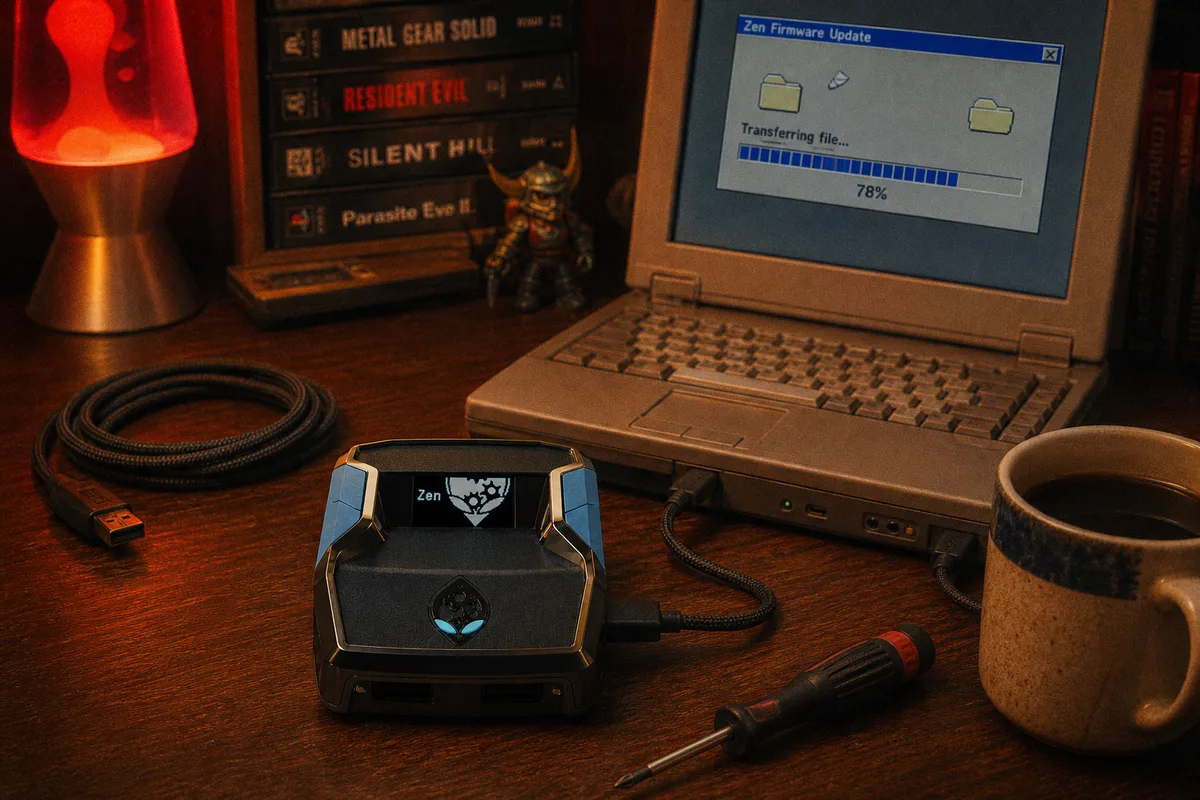
The very first thing you should do when you get a Cronus Zen — before loading any scripts, before connecting it to your console — is update the firmware. Outdated firmware is the number one cause of issues that people run into. Things like connection drops, the Zen not authenticating with PS5, or scripts behaving unexpectedly. In almost every case, a firmware update resolves the problem completely.
The entire process takes about 30 seconds and it's completely free. There's really no reason to skip it.
Getting Into Bootloader Mode
You'll need a PC (either Windows or Mac) and a USB cable. Plug the cable into the OUTPUT port — that's the port on top of the Cronus Zen — and connect the other end to your computer.
Now turn the Zen upside down. You'll see a small blue button on the bottom. Press and hold it until the screen displays "Zen Bootloader". If the screen is showing anything else — the normal menu, a script name, or anything other than "Zen Bootloader" — then you're not in bootloader mode yet. Continue holding the button until you see it.

Flashing the Firmware
There are two ways to update. The web tool is the quickest if you just want to get it done fast.
Web tool: Open Chrome, Edge, or Brave (it has to be a Chromium-based browser — Safari and Firefox don't support WebUSB, so they won't work for this). Go to the firmware page, click Connect, select your Cronus Zen from the list, and click the Latest button. The firmware will flash in about 20 seconds and the Zen restarts automatically.
Cronus Zen Firmware Update Tool
Zen Studio: If you already have Zen Studio installed, you can update through there instead. Open Zen Studio with the Zen connected in bootloader mode, then go to Tools → Online Firmware Update and follow the prompts. The result is the same — it's just a different method.
If Something Goes Wrong
Zen not showing up? First, double-check that you're actually in bootloader mode — the screen needs to say "Zen Bootloader." Also, some USB cables are charge-only and don't support data transfer. If you've been waiting on the connection screen for more than a minute, try swapping to a different cable before anything else.
Using Safari or Firefox? The web firmware tool won't work in those browsers. You specifically need Chrome, Edge, or Brave because the tool uses WebUSB, which is a Chromium-only feature.
Update seems frozen? Give it a full 60 seconds before assuming something is wrong. If it's genuinely stuck after that, unplug the cable, hold the blue button again to re-enter bootloader mode, and try the update again. In the worst case, hold the blue button for 10+ seconds to perform a hard reset of the device.
One thing I want to mention because people worry about this: updating firmware will not erase your scripts. Scripts are stored in separate memory slots on the device. Firmware updates only affect the system software.
When to Update
Definitely update when you first receive your Zen. After that, it's a good idea to check for updates every couple of months or whenever a major console update is released. If your Zen ever starts behaving unusually — random disconnects, scripts not loading properly — a firmware update should always be the first thing you try.
Firmware update fixed everything. Was getting random disconnects and now it works perfectly.
 Recommended script