GuidesThread: PlayStation 5 Setup — Cronus Zen


DID YOU KNOW
Press ⌘K (or Ctrl K) to search scripts, guides, and pages from anywhere.
SaleUse code GG for an extra 10% off


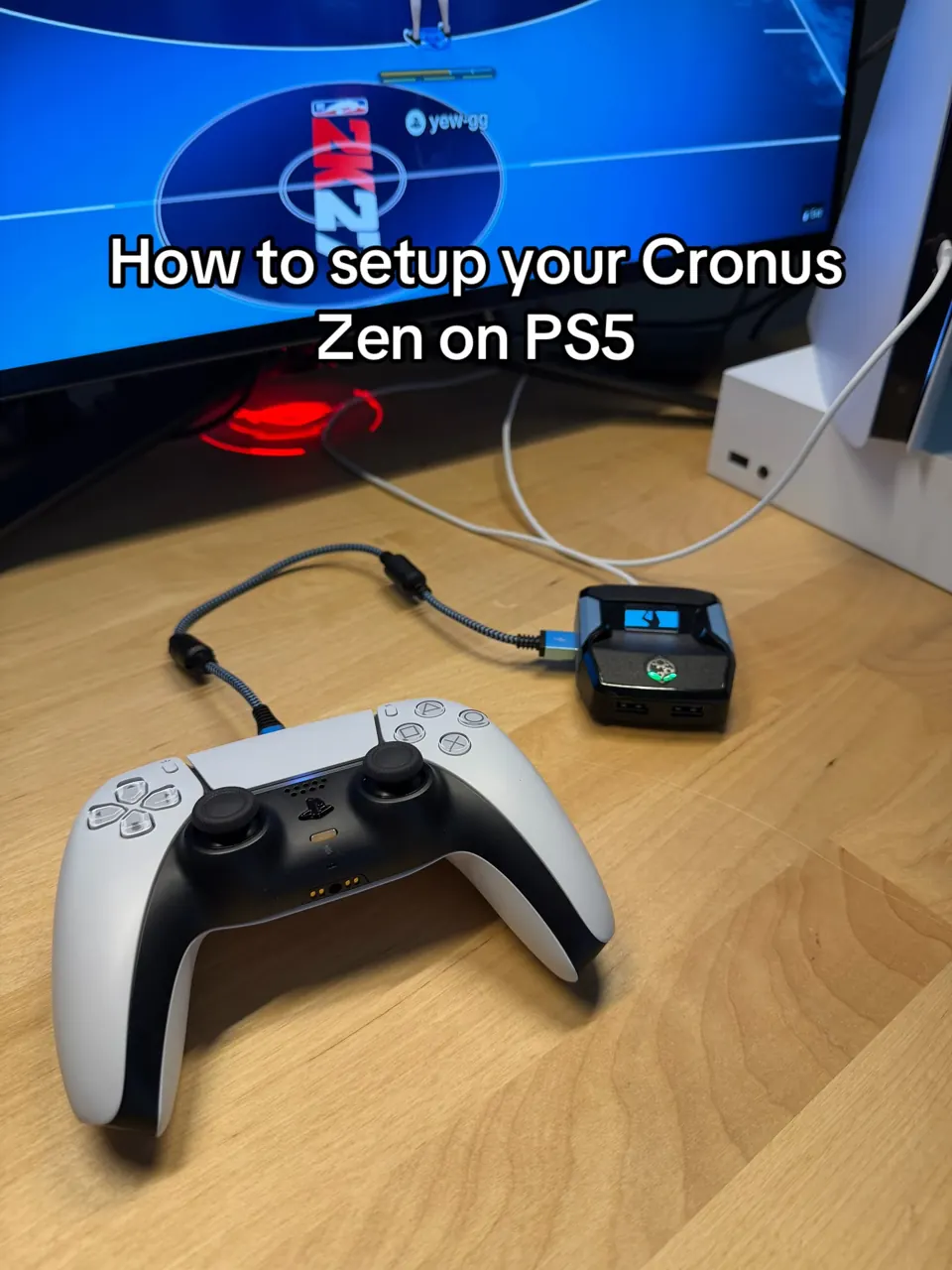
Cronus Zen works on every PS5 (Standard, Digital, Slim, Pro) with a DualSense or DualSense Edge. Sony blocks third-party devices, so the Cronus Zen has to be connected with a quick bypass — no extra hardware, no PC, and it takes about 60 seconds once you've done it twice. This is exactly how we connect ours.
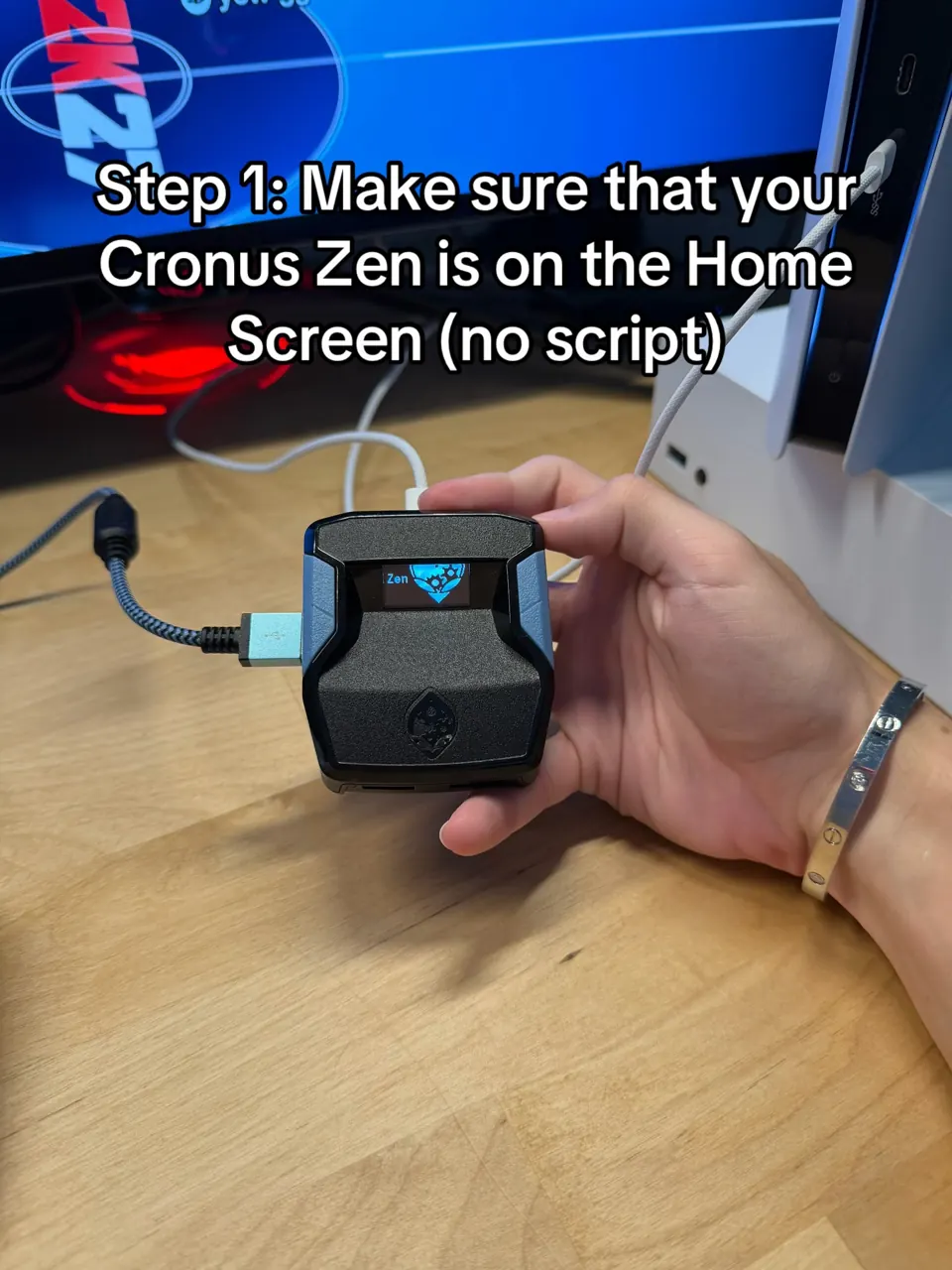
Put the Cronus Zen on its Home screen (no script). If a script is loaded, tap the right blue button on the Cronus Zen until you see the home screen.
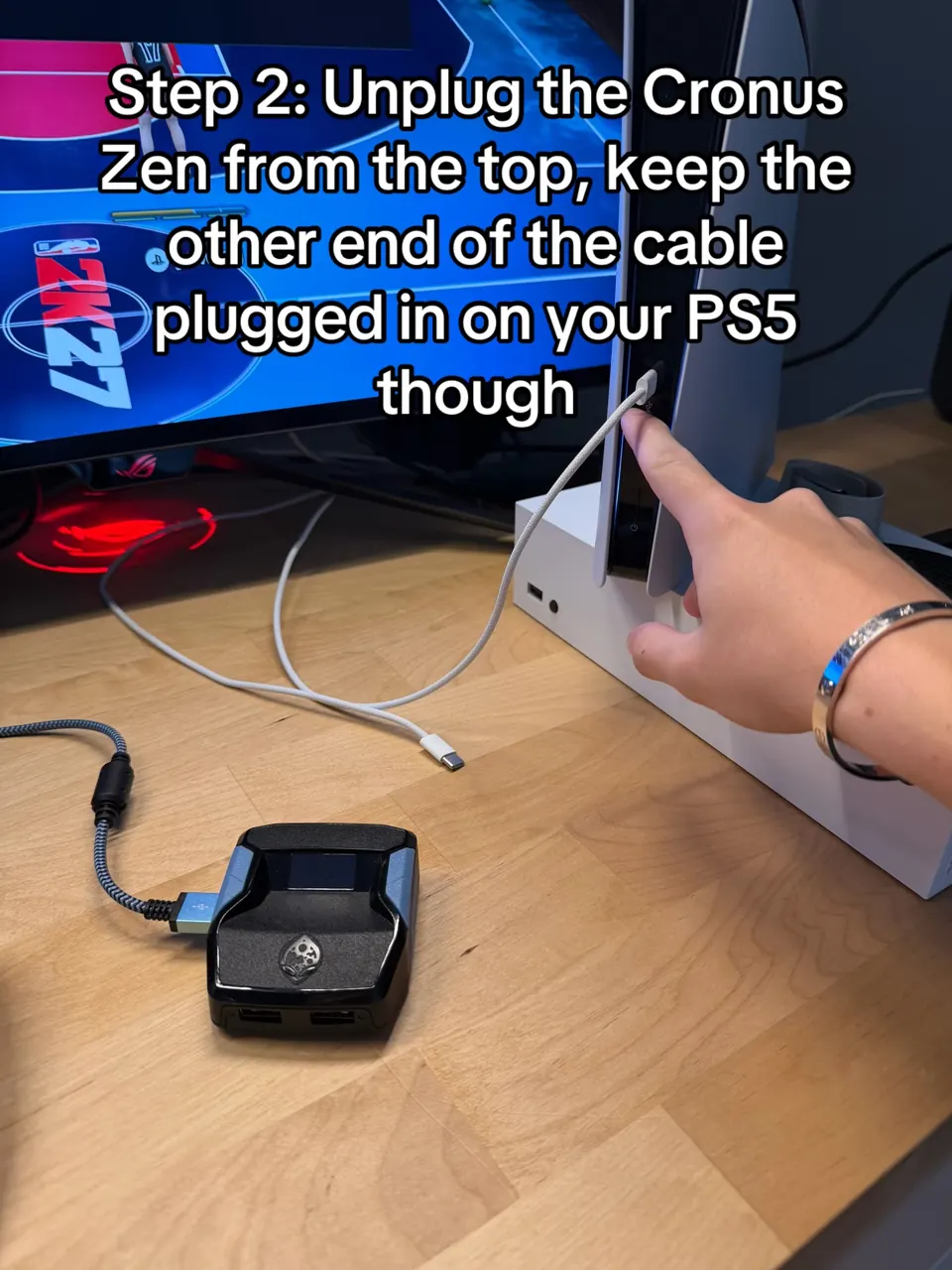
Unplug the cable from the top of the Cronus Zen (the CONSOLE port). Leave the other end plugged into your PS5.
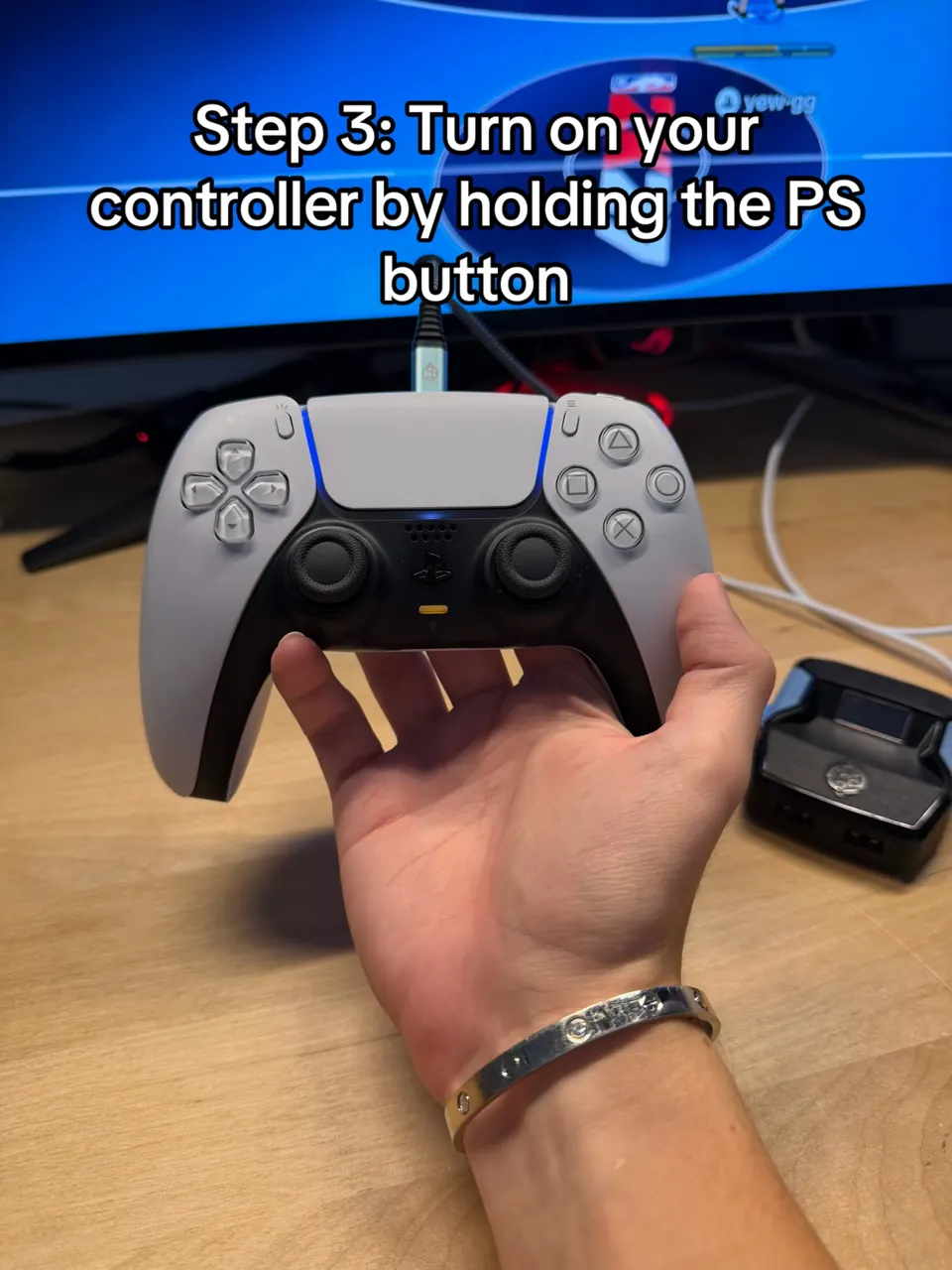
Turn on your controller by holding the PS button. It connects to the PS5 wirelessly for the next two steps.
On the PS5 go to Settings → Accessories → General.
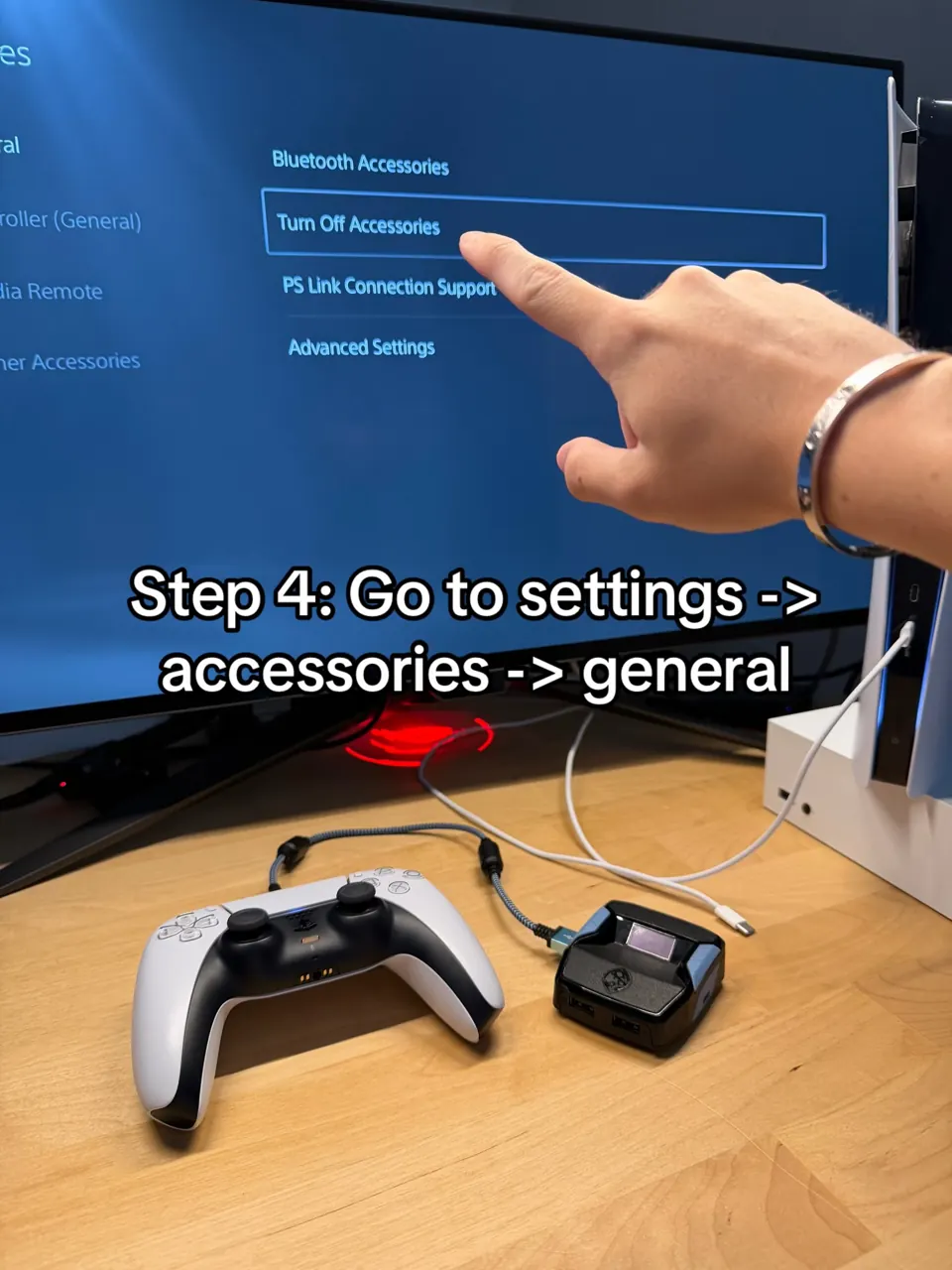
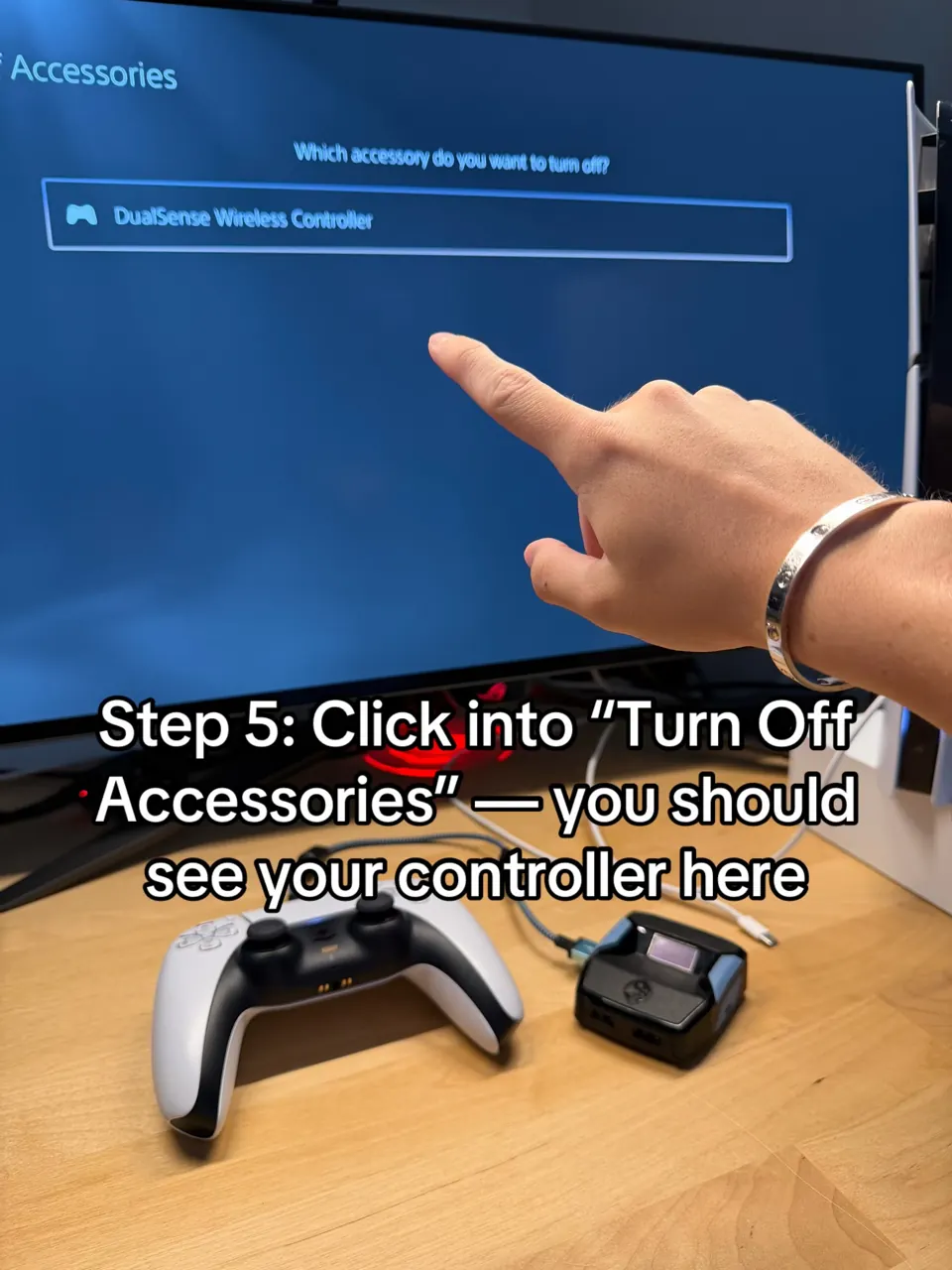
Open "Turn Off Accessories". You should see your controller listed — don't select it, just stay on this screen.
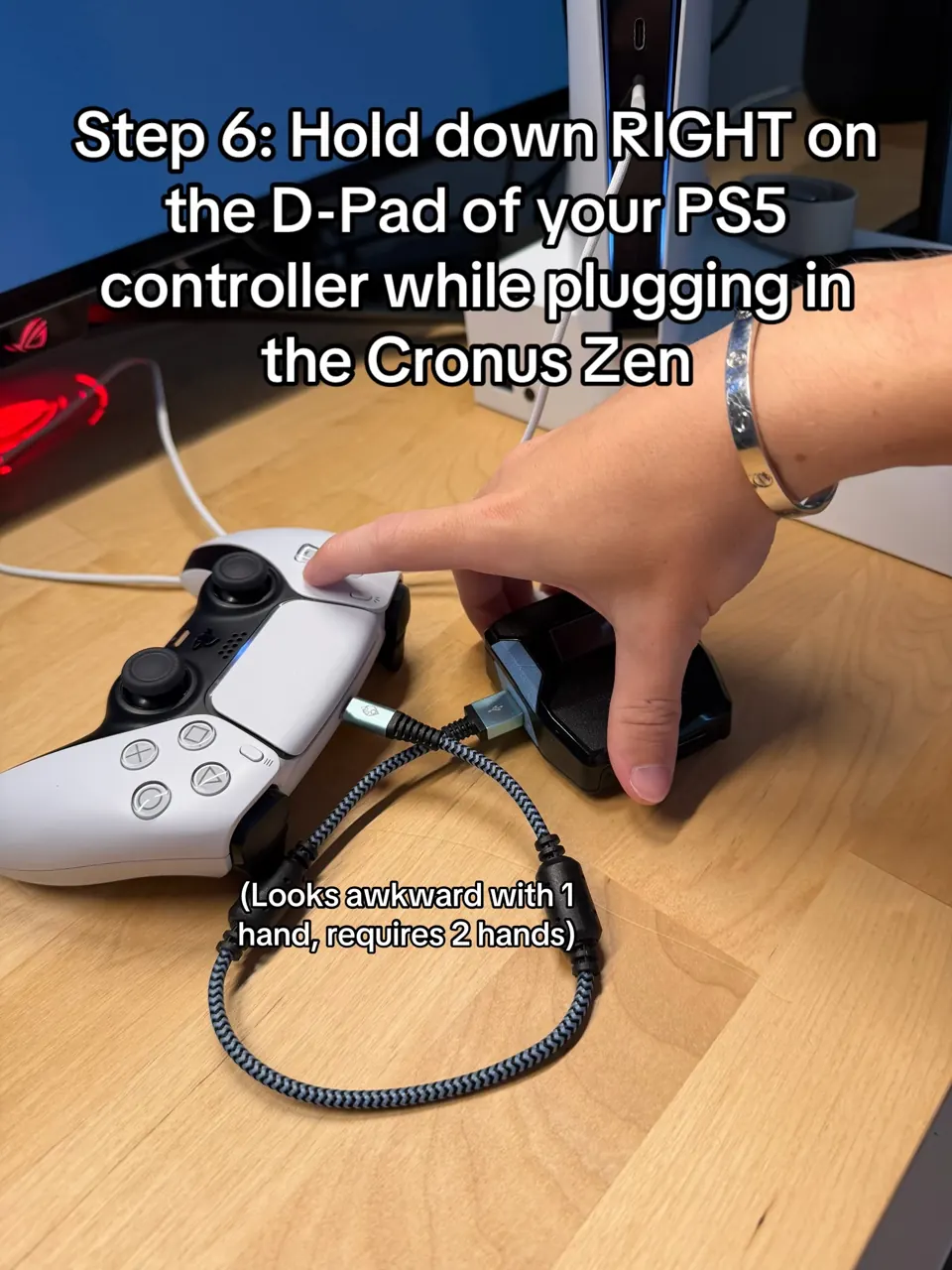
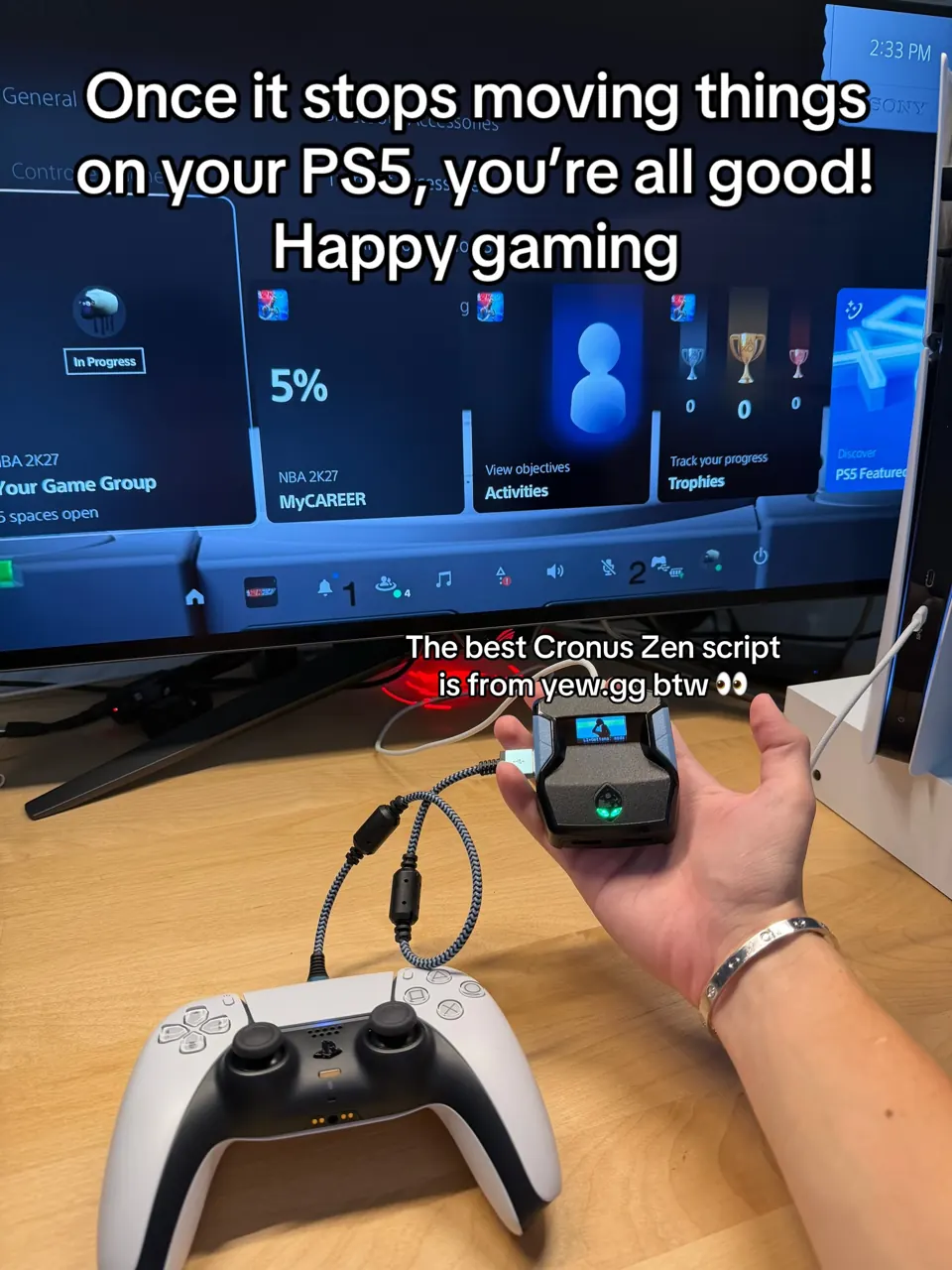
Hold RIGHT on the D-pad and, while holding it, plug the cable back into the top of the Cronus Zen. It's awkward with one hand — use two.
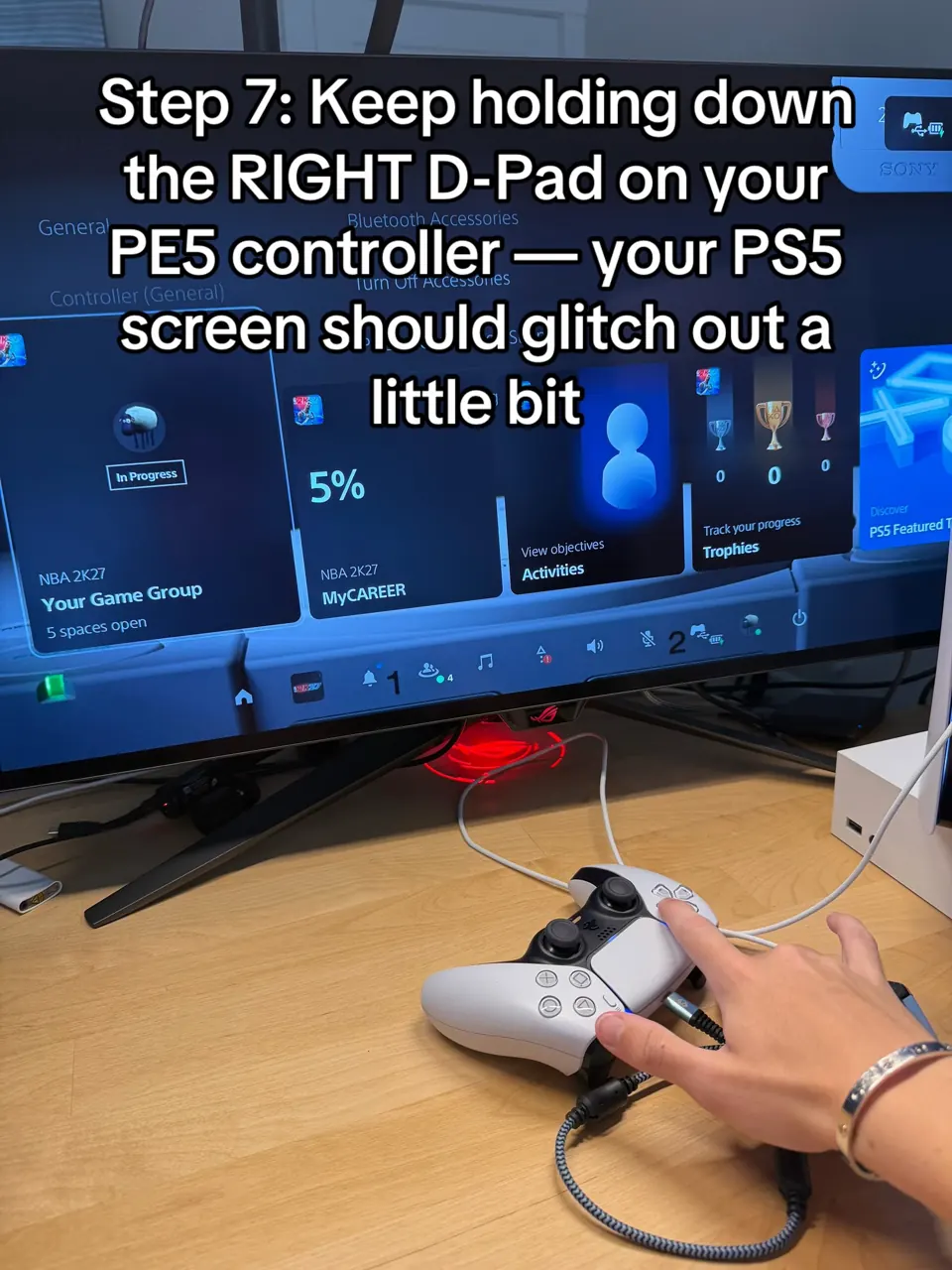
Keep holding Right. Your PS5 screen will glitch and jump around for a few seconds — that's the Cronus Zen taking over. Don't let go until it stops.
If you'd rather not redo the bypass after disconnects, the Zen Linkis a Wi-Fi dongle for the Cronus Zen's A1 port that connects to the PS5 wirelessly and stays connected. It needs a one-time setup on a Windows PC and a 2.4 GHz network — follow Cronus's guide below. Most players don't need it.
Source: Official Zen Link Setup Guide
 Sign in