GuidesThread: Connection Guides


DID YOU KNOW
Press ⌘K (or Ctrl K) to search scripts, guides, and pages from anywhere.
SaleUse code GG for an extra 10% off
These are the official steps to connect your Cronus Zen to your console or PC. If you skip a step, your controller will disconnect.
Source: Official Cronus Connection Guide
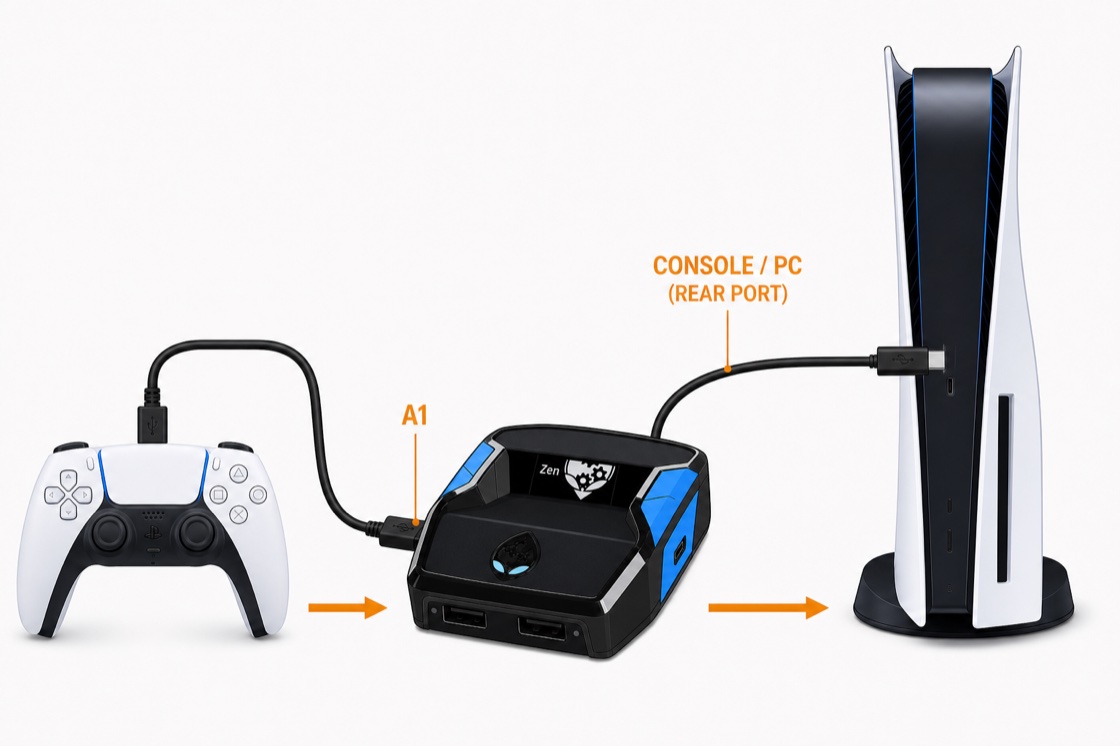
Sony blocks third-party devices, so PS5 needs a quick bypass: Zen on its Home screen, unplug the top cable, hold Right on the D-pad while plugging it back in from the PS5's Turn Off Accessories screen. No extra hardware — about 60 seconds.
Xbox is plug-and-play. You do not need a bypass.
Plug the short USB-C cable into the back CONSOLE port of the Zen, and plug the other end into your Xbox.
Plug your Xbox controller into the left A1 port of the Zen using a high-quality data USB cable.
Make sure your Zen Studio "Emulator Output Protocol" is set to Xbox One X/S or AUTO.
If your headset doesn't work when plugged into your Xbox controller, you must downgrade your Zen firmware to version 2.0.9-beta.43. See the Firmware Guide.
Connecting to a PC is very simple. Your PC will think the Zen is a normal Xbox controller.
Plug the short USB-C cable into the back CONSOLE port of the Zen, and plug the other end into your PC.
Plug your controller into the left A1 port of the Zen.
Make sure your Zen Studio "Emulator Output Protocol" is set to Xbox 360. This gives you the best compatibility with PC games.
 Sign in