


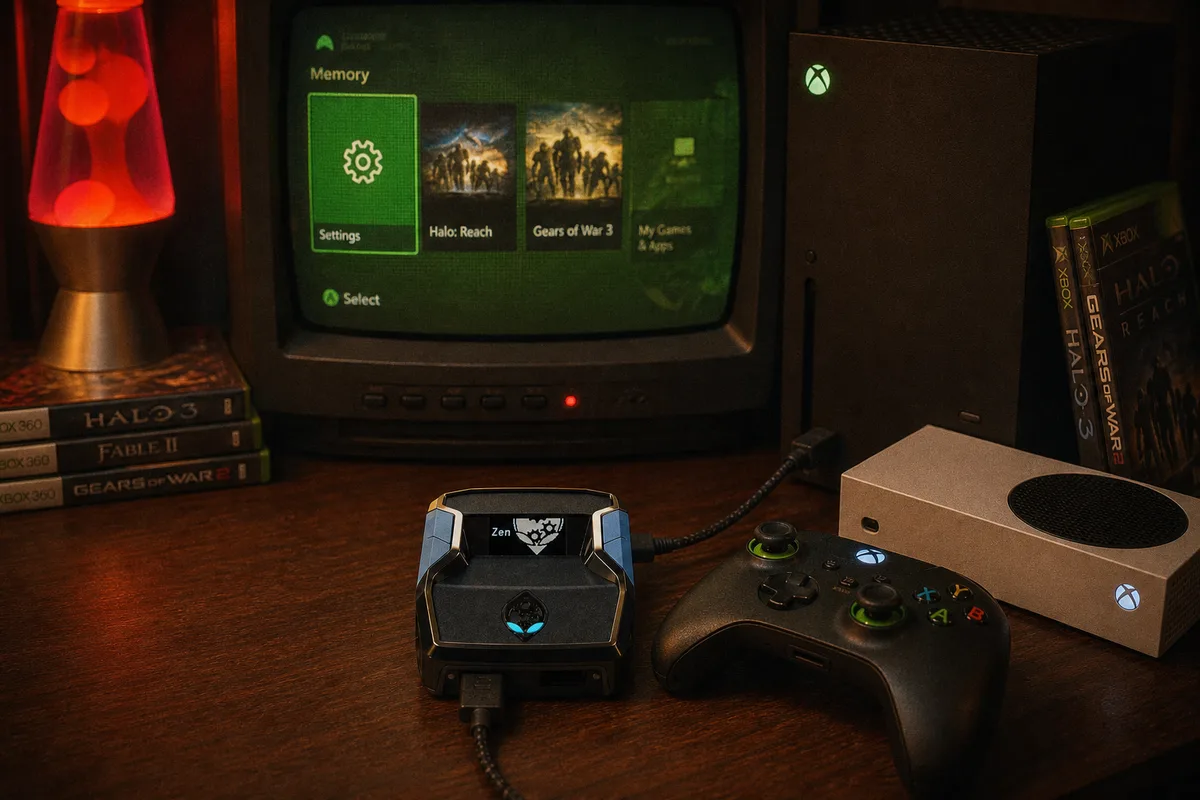
Out of all the platforms, Xbox is the easiest one to set up with a Cronus Zen. There's no bypass process like PS5 requires, no special button sequences, and no tricks. You connect two cables and it works. It really is that straightforward.
This guide covers the Xbox Series X, Series S, and the original Xbox One. The setup process is exactly the same for all three.
The Setup
Here's everything you need: your Cronus Zen, an Xbox controller, and two USB cables. That's the complete list.
Take the first cable and connect it from any USB port on your Xbox to the OUTPUT port on top of the Cronus Zen. Take the second cable and plug your Xbox controller into the A1 port, which is the port on the left side of the Zen.
Turn on your Xbox. The Cronus Zen will power on automatically — you'll see the LED cycle through some colors before settling. Once it settles, you're connected. Select your script using the buttons on the Zen, and you're ready to play.
There are no Xbox settings you need to change. No Bluetooth pairing required. It just works right away.

Output Protocol (Optional But Recommended)
Before disconnecting the Zen from your PC after loading scripts, I'd recommend setting the output protocol. In Zen Studio, go to Device → Output Protocol and select Xbox One X/S. This works for every Xbox model. The Zen is able to auto-detect the console, but setting it manually prevents the occasional delay during the initial handshake when you power on.
Using a Different Controller
Something really nice about the Cronus Zen is that you can use controllers from other platforms on your Xbox. For example, you can use a PS5 DualSense, a PS4 DualShock, or even keyboard and mouse — all through the Zen. The important thing to remember is that you still need an Xbox controller connected to the A1 port for authentication purposes. It stays plugged in but you don't actually play with it. Then connect whatever controller you want to use to the A3 port (front-left), and the Zen handles all the input translation so your Xbox recognizes it as standard Xbox input.
Troubleshooting
LED won't stop flashing: This is usually caused by a bad USB cable. A surprising number of USB cables only support charging and don't transfer data. Try using the cable that came with your Xbox controller — that one is always guaranteed to work.
Random disconnects during gameplay: Check whether the PROG port (on the right side of the Zen) is plugged in. It should not be connected during gameplay. That port is only for connecting to Zen Studio on your PC. If it's plugged in while you're playing, the Zen enters programming mode and drops the controller connection.
Input feels laggy: The Cronus Zen itself adds virtually zero latency. However, if you're connecting it through a USB hub or a long extension cable, that can introduce delay. For the best experience, plug the Zen directly into a USB port on the Xbox.
 Recommended script