




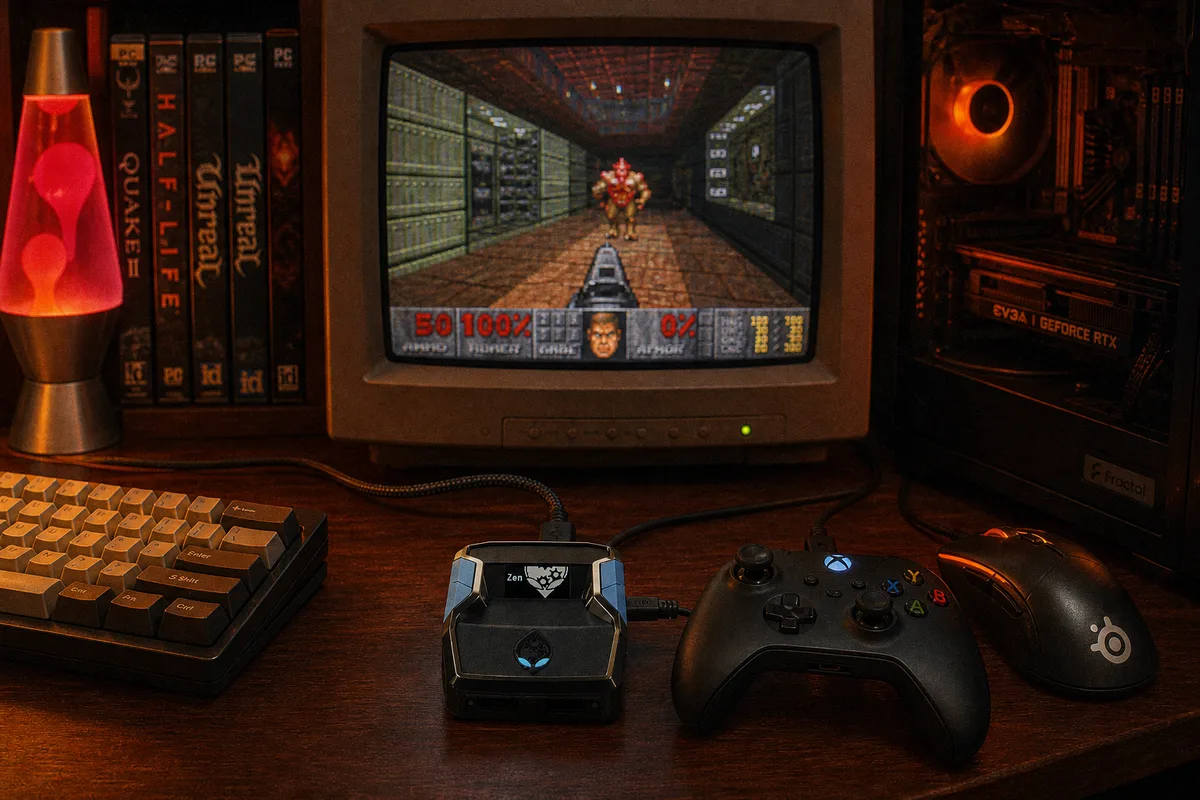
PC is the simplest platform to use a Cronus Zen on. There's no bypass process like PS5 requires — you just connect a USB cable and your PC recognizes the Zen as a standard controller. If you've ever plugged a gamepad into your computer before, the process will feel very familiar.
How to Set It Up
Before connecting to your PC for gameplay, make sure your scripts are already loaded onto the Cronus Zen through Zen Studio. You'll also want to set the output protocol, which tells the Zen what type of controller to emulate. Xbox 360 offers the widest game compatibility because virtually every PC game supports Xbox controller input natively. If you want features like impulse triggers, choose Xbox One X/S instead. If you prefer PlayStation button prompts in games that support them, select DualShock 4.
Now, this next part is really important because it's the most common mistake people make on PC: make sure the PROG cable is unplugged. The PROG port is on the right side of the Zen, and it's only used for connecting to Zen Studio. If it's still plugged in when you try to play, the Zen stays in programming mode and your controller won't respond. I'd estimate that about half of our "it's not working on PC" support messages come down to this one thing.
Connect your controller to the A1 port on the left side of the Zen. Then run a USB cable from the OUTPUT port (top of the Zen) to your PC. The Zen will power on and Windows will detect it as a regular controller. Select your script on the Zen, launch your game, and you're ready to play.

Game Compatibility
The Cronus Zen works with virtually every PC game. Steam handles controller detection automatically — just make sure controller support is enabled in your Steam settings. Titles from other PC storefronts work without any issues as well. Games that natively expect Xbox controller input will work especially well with the Xbox output protocol.
Your PC recognizes the Zen as a standard controller, so games treat it like any other gamepad.
Keyboard and Mouse Through the Zen
It's also possible to run keyboard and mouse through the Cronus Zen on PC. This isn't as common since you already have native keyboard and mouse support, but the use case would be running scripts that require controller input while you continue using your keyboard and mouse for gameplay. You can connect them to the A2 and A3 ports and the Zen will translate the input accordingly.
If It's Not Working
Open your Windows controller settings (Settings → Devices → Controllers) and check if a gamepad appears in the list. If it doesn't show up, try a different USB port on your PC, and please make sure the PROG cable is disconnected — this is the most common cause. If your game is displaying the wrong button prompts (for example, PlayStation icons when you want Xbox, or the other way around), go back into Zen Studio and change the output protocol to match what your game expects.
 Recommended script