



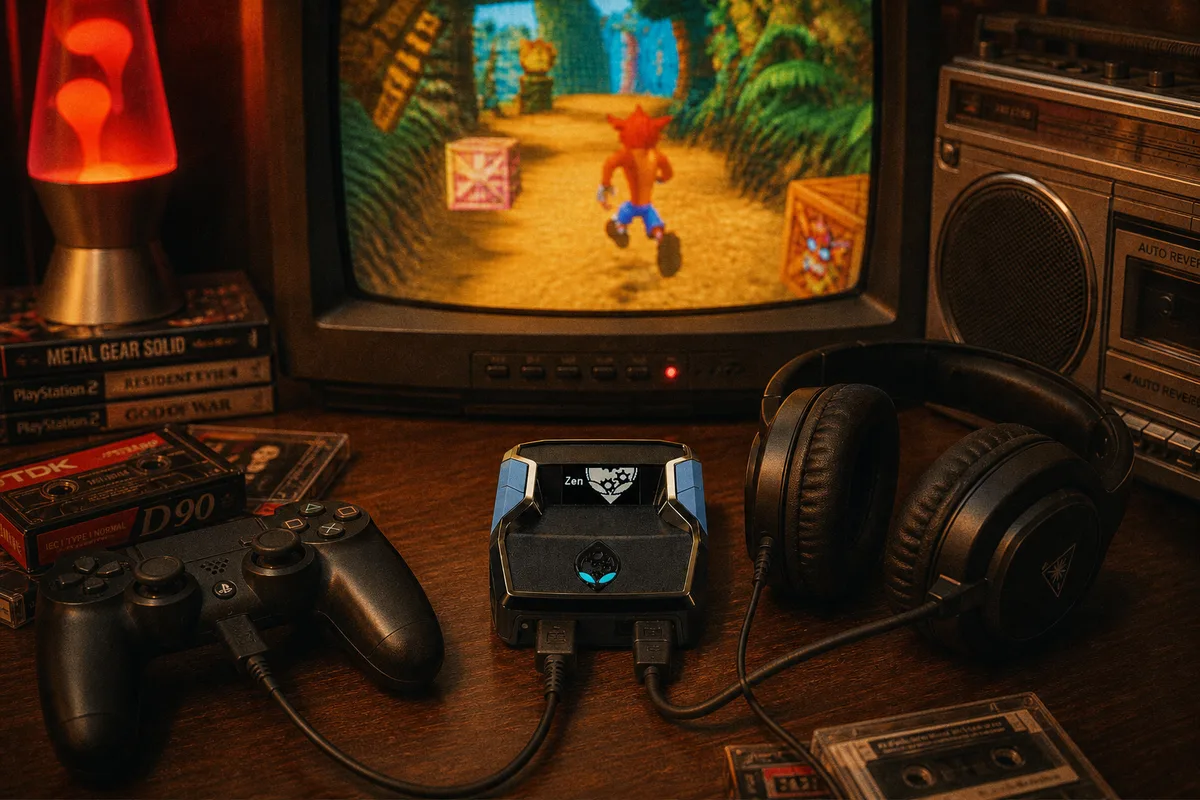
Let me be upfront about something we tell every customer: audio is the Cronus Zen's weakest area. The device is built to process controller inputs, and passing headset audio through to a controller plugged into A1 is the one part of the experience that regularly trips people up. The classic symptom: everything works — script running, inputs perfect — but the headset plugged into your controller's 3.5mm jack is silent.
The good news is that every platform has a clean solution. The better news is that the best solutions don't involve the Zen at all. Here's the full picture, platform by platform.
Why the 3.5mm Jack Goes Silent
When your controller connects directly to a console, the console streams audio to it and the controller feeds your headset jack. Put a Zen in the middle and that audio stream has to survive the pass-through — and depending on platform and firmware, it often doesn't. Inputs and audio are separate streams; the Zen prioritizes the input path (as it should), and audio pass-through support has historically varied by firmware version, especially on Xbox.
So the guiding principle for every fix below: route audio around the Zen, not through it.

The Universal Fix: Dongle or Console-Direct Audio
Works on every platform, zero firmware fiddling:
- Wireless headset with a USB dongle — plug the dongle into the console (not the Zen). The headset gets its audio directly from the console; the Zen never touches it. This is what I run personally and what I recommend in every support conversation.
- TV or monitor audio — HDMI carries sound to your display; use its speakers or headphone out.
- Optical/HDMI audio extractors — for people with dedicated DACs or mixers; same principle, console-direct.
If you're buying a headset anyway, buy one with its own dongle and this entire article becomes irrelevant to you. That's the honest recommendation.
PS5
On PS5, the cleanest setups in order of preference:
- Pulse-style wireless headsets or any dongle headset → dongle into a PS5 USB port. Game and chat audio both work normally through the console's audio settings.
- TV audio for game sound, with a separate mic solution if you need chat.
- 3.5mm into the DualSense on A1 — hit and miss behind the Zen. Test it by all means, but don't build your setup around it working.
None of this interacts with the PS5 bypass — authenticate first as usual, then sort audio. If your Zen setup on PS5 isn't working at all (not just audio), start with the PS5 guide instead.
 Cronus Zen on PS5 — full setup guide
Xbox — The Firmware Workaround
Xbox is where the 3.5mm question comes up most, because so many Xbox players use wired headsets through the controller. The known workaround: firmware 2.0.9-beta.43 supports headset audio pass-through on Xbox, and players who need the controller jack downgrade to it specifically. That's a documented, deliberate edge case — not a hack — but it means running older firmware than current stable.
My honest guidance: if the controller jack is non-negotiable for you, the beta firmware works and plenty of people run it happily. If you can switch to a dongle headset instead, do that and stay on current firmware — newer firmware gets the latest fixes and compatibility work. Firmware switching itself is easy either way; the firmware guide covers installing any version through Zen Studio.
How to install any Cronus Zen firmware version
Cronus Zen Xbox setup — full guide
PC
PC is the easy one: your audio never needed to touch the controller in the first place. Use your normal PC audio output — motherboard jack, USB headset, DAC, whatever you already run. The Zen handles inputs; Windows handles sound. If you're setting up on PC for the first time, the PC setup guide covers the input side.
Chat and Mic Notes
- With a dongle headset, mic and chat work normally — the console treats the headset as its own device, independent of the Zen.
- Party chat balance, game/chat mix, and mic monitoring all live in your console's audio settings, same as without a Zen.
- If your mic works but friends say you're quiet, that's console-side mic gain — not a Zen issue.
The Decision Tree
- Own a dongle headset? → Dongle into console. Done.
- Wired headset on Xbox, must use the controller jack? → Firmware 2.0.9-beta.43.
- Wired headset on PS5? → Try the DualSense jack; if silent, use TV audio or budget for a dongle headset.
- PC? → Normal PC audio. The Zen is irrelevant to your sound.
Audio sorted, everything else about the Zen is business as usual — scripts, slots, and updates work the same regardless of how sound is routed. If you're still getting your setup dialed in end to end, start from the full setup guide.
Cronus Zen setup guide — PS5, Xbox & PC