

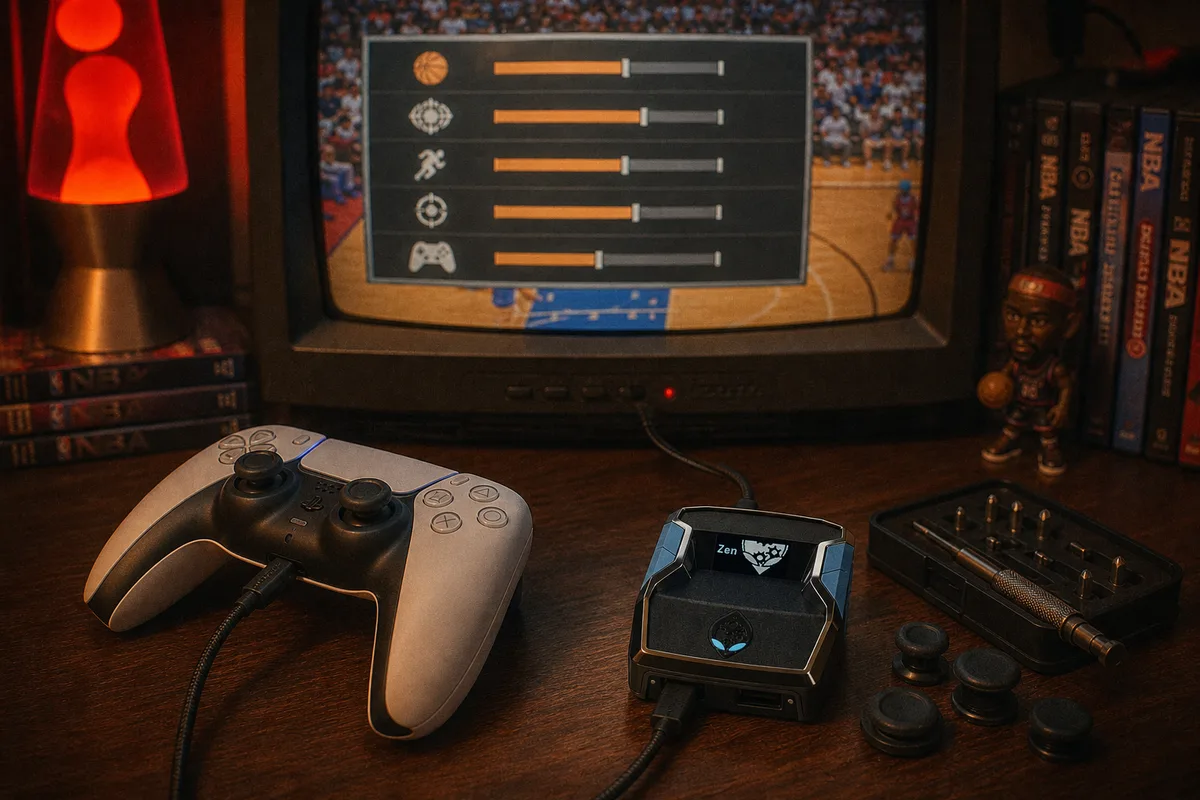
I handle the engineering side at yew.gg, and a decent chunk of "the script feels off" reports trace back to something we don't control: in-game settings that changed after the generator was run. The Cronus Zen sits between your controller and the console, which means your NBA 2K26 settings are part of the same input chain the script operates in. Here's every setting that actually interacts with a script, what to set it to, and — just as important — which settings don't matter so you can stop worrying about them.
The Settings That Matter
Shot timing profile
2K26 lets you trade green window size against shot speed through timing profiles. Whatever you choose, the rule is: the profile you play with must be the profile you entered in the yew2K generator. The script times releases based on the animation speed that profile produces. Change the profile without re-running the generator and every release lands off-center.
Shot timing visual cue
Jump, Set Point, Push, or Release. With AI Auto-Green active the cue is cosmetic — the script isn't watching your screen, it's timing the animation at the input layer. But if you ever shoot manually or run Button Rhythm, the cue is your reference point, so pick one (Set Point is the common choice) and keep it fixed. Consistency here keeps your manual reps and your scripted reps feeling like the same jumpshot.
Controller vibration: off
This is the one non-negotiable. Rumble fires during gathers, contests, and screens — right in the middle of shot animations. It's physical noise on your hands and electrical noise in the input stream, and it's unpredictable. Every timing-sensitive mod gets marginally more consistent with vibration off. Turn it off in both the 2K26 settings and your console's controller settings.
Shot meter
Your call. The game applies its green-window bonus for shooting meterless whether a script or a human times the release, so meter off is the theoretically correct choice with Auto-Green — you get the bonus without the risk meterless normally carries. If you want the visual feedback while you learn to trust the script, leave it on for a week, then turn it off.

The Settings That Don't Matter (For the Script)
Set these for comfort — no script interaction:
- Defensive assist strength: Personal preference. If you run AI Defense from yew2K, it operates on top of whatever assist level you set; pick what feels right for your manual defense.
- Pro Stick orientation and function: Only relevant if you shoot with the stick — and if you do, read our Rhythm Shooting breakdown first, because it changes which mods you want active.
- Camera: Zero script interaction. 2K/ProAm camera is standard for competitive play because of the spacing read, not because of anything script-related.
- Icon passing, off-ball movement, dribble style: All preference.
Console-Level Settings
Two more layers below the game worth checking:
- Wired everything. Controller to the Zen's A1 port with a data cable, console to your router with ethernet. Wireless adds variable latency at two points in the chain, and variable is the enemy — a stable 40ms beats a fluctuating 25-60ms for timing consistency. My colleague wrote up how ping affects Auto-Green if you want the full picture.
- TV game mode on. Display processing adds input lag before you ever see the frame. Game mode bypasses most of it. This doesn't affect the script's timing (the script works at the input layer, not the display), but it affects your reads and reactions on defense and dribbling.
 Full Cronus Zen setup guide — PS5, Xbox and PC
Connection reference for every platform
Full Cronus Zen setup guide — PS5, Xbox and PC
Connection reference for every platform
A Settings Checklist Before You Queue
| Setting | Recommendation | Why |
|---|---|---|
| Shot timing profile | Same as generator | Script is tuned to it |
| Visual cue | Pick one, keep it | Consistent manual reference |
| Vibration | Off | Removes input noise |
| Shot meter | Off (when confident) | Meterless green bonus |
| Controller connection | Wired to A1 | Stable input latency |
| Console network | Ethernet | Stable network latency |
| TV | Game mode | Lower display lag |
Run through this once, re-run the yew2K generator if you changed your timing profile, and your settings are done for the season. If shots still feel off after all of this, the issue is usually the animation or the network, not the settings — and our Discord support can look at your exact configuration live.
Watch yew2K running with these settings
Get yew2K — $50 one-time