




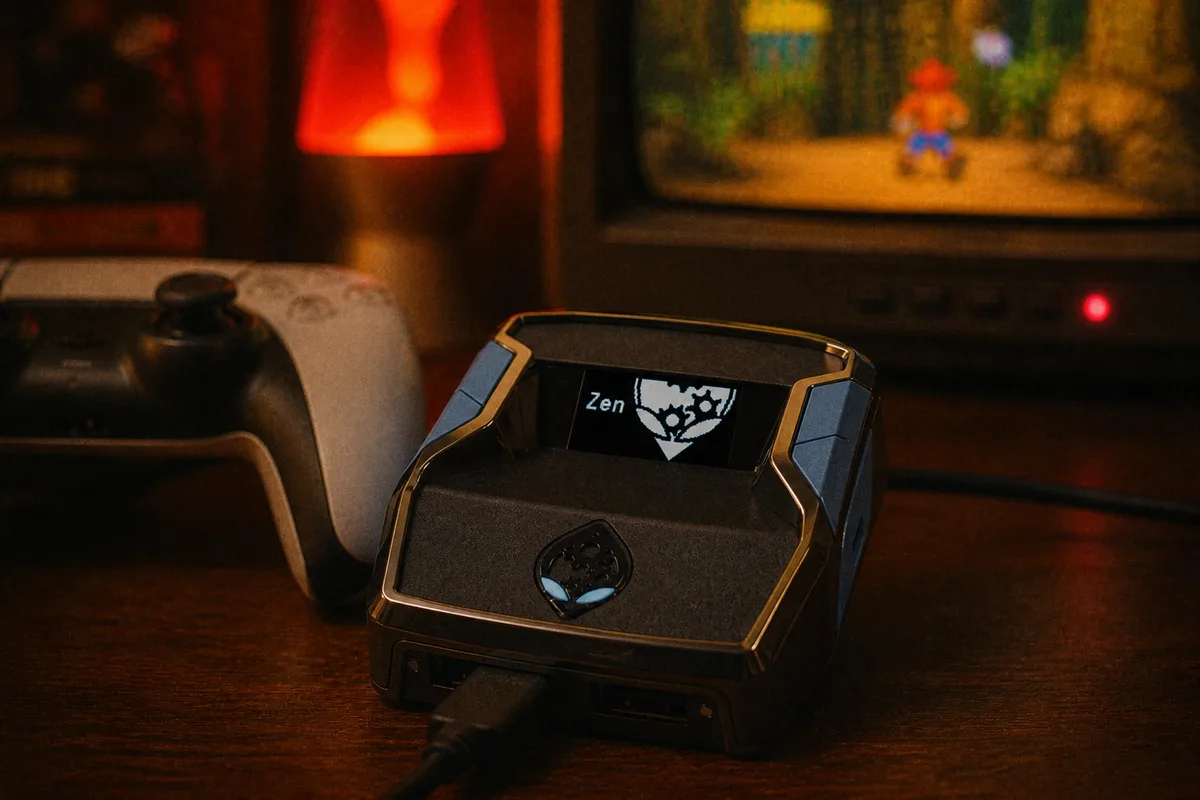
The Cronus Zen's OLED screen is small, monochrome, and easy to ignore — which is a shame, because it answers most troubleshooting questions before you ever open Zen Studio. When someone messages support saying "it's not working," my first question is always the same: what does the screen say right now? This guide is everything that little display can tell you.
The Boot Sequence
Plug the Zen in (OUTPUT to console/PC, or PROG to a computer) and watch the screen. A healthy boot shows the Cronus branding, then settles onto the home state: either a script name or "No Gamepack Selected." Two useful reads here:
- Screen never lights up — no power reaching the device. Cable or port problem; start with the cable guide.
- Screen lights up but loops or freezes during boot — firmware problem. Recover with bootloader mode (blue button on the bottom, held while plugging PROG into a PC) and reflash. Steps in the hard reset guide.

"No Gamepack Selected" — Not an Error
This message confuses more beginners than anything else on the device. It simply means the currently selected memory slot is empty — the Zen is passing your controller through untouched. Your controller works fine in this state; you just have no script active.
Two situations where you actually want this screen:
- During the PS5 bypass. Authentication must happen with no script running, so you select an empty slot, hold right D-pad, plug in OUTPUT, and only switch to your script slot after auth completes.
- A/B testing. Want to feel the difference a script makes? Flip to the empty slot mid-session and back.
Script Name on Screen = Script Running
When a slot with a compiled script is selected, the OLED shows the script's name. This is the single most important thing the screen tells you: name on screen means the script is live. If you flashed a script in Zen Studio but the screen still shows something else, you are on the wrong slot — the flash does not auto-select. This one misunderstanding drives a huge share of "script not working" tickets.
Cycling the 8 Memory Slots
The Zen holds up to 8 scripts in 8 memory slots, flashed via Zen Studio's Programmer tab. On the device, you cycle between slots with the physical button — each press moves to the next occupied slot, and the OLED updates to show the slot's script name. A few practical notes:
- Slots persist without a PC. Flash once at your desk, then switch games from the couch all week.
- Cycling mid-session is fine — switch slots between matches, not mid-gunfight.
- Keep a mental (or literal) map of what lives where. I keep slot 1 as my main game and slot 8 empty for pass-through.
I wrote a full workflow for organizing slots across multiple games in the memory slots guide.
Screens You'll See During Updates
During a firmware update (via Zen Studio or the Chromium web tool), the OLED shows update progress states. The only rule that matters: do not unplug the device while an update screen is showing. An interrupted flash is the main way people end up in bootloader recovery. The firmware guide covers the safe procedure.
The bootloader screen itself — what you get when holding the blue button during power-on — looks deliberately different from the normal interface. If you see it unexpectedly, the device booted into recovery; reflash firmware and it will return to normal.
 Firmware updates & recovery — full docs
Reading the Screen for Connection Problems
The OLED also reflects connection state — whether the device is talking to a console/PC and whether a controller is present on A1. The practical diagnostic flow:
- Screen dark → power problem → cables.
- Screen on, stuck at boot → firmware → bootloader reflash.
- Screen on, "No Gamepack Selected" → device healthy, no script selected → cycle slots.
- Screen shows script name but game feels stock → script/settings issue → diagnosis guide.
- Screen fine but console unresponsive → connection/auth → check OUTPUT cable, controller on A1, PROG unplugged, and on PS5 re-do the bypass.
That five-line flowchart resolves the overwhelming majority of tickets I see. The screen is honest — trust it over your assumptions.
Cronus Zen setup guide — from unboxing to playing